
Designing with Cloud PNG: Advanced Sky and Weather Overlays for Photo Editing
 By Pics PNG
•
Jun 13, 2026
By Pics PNG
•
Jun 13, 2026
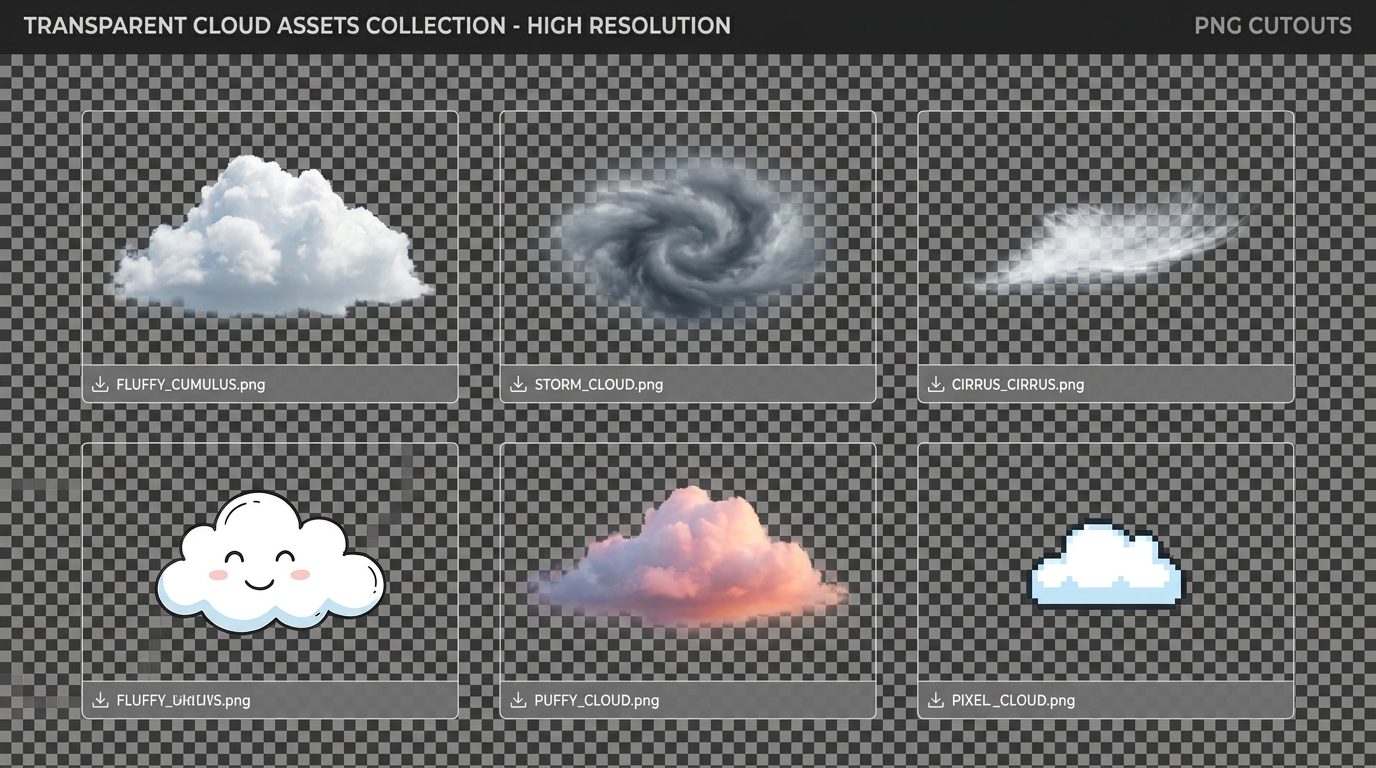
In photography and digital art, the sky is a powerful storytelling tool. A clear blue sky conveys calm and optimism, while towering, dark storm clouds create a sense of drama, tension, or impending mystery. Unfortunately, outdoor photo shoots don't always align with perfect weather. Rather than discarding a well-composed photo due to a flat, overexposed, or boring sky, professional photo editors turn to sky replacement techniques using high-quality cloud png assets.
Using transparent cloud cutouts allows you to paint customized weather elements onto your digital canvas with precision. In this advanced tutorial, we will cover the fundamentals of selecting realistic cloud overlays, detail step-by-step blending techniques in popular design software, and explore creative applications in web design and video editing.
Why Use Transparent Cloud Overlays?
Replacing a sky using a solid background image requires complex mask selections around fine details like tree branches, power lines, and architectural outlines. This process is highly tedious and often results in artificial-looking edges.
By contrast, using a clouds png file with native alpha transparency allows you to stack elements behind or in front of your subjects without complex masking. You can paint wispy cirrus clouds, puffy cumulus details, or dark storm elements directly into your composition, letting the background scenery show through the transparent zones.
| Cloud Type | Visual Characteristics | Mood / Theme | Best Graphic Application |
|---|---|---|---|
| Cumulus (Fluffy) | Bright white, defined rounded edges | Warmth, daylight, peace | Travel blog headers, real estate photos |
| Storm (Nimbus) | Dark gray, dense, glowing highlights | Drama, danger, powerful mood | Movie posters, dramatic sports graphics |
| Cirrus (Wispy) | Thin, fibrous, scattered lines | Dreamy, high altitude, clean | Minimalist background textures |
| Sunset (Warm) | Golden, pink, orange highlights | Nostalgia, romance, transition | Wedding photo edits, warm overlays |
Step-by-Step: Blending Clouds into a Landscape Photo
To make a cloud transparent png look like it was captured by the camera lens at the moment of the exposure, you must match the ambient lighting and depth of field. Follow this expert workflow:
Step 1: Establish Depth of Field
When placing a cloud behind distant mountains or buildings, remember that objects farther from the camera are subject to atmospheric haze and depth-of-field blur. Select your cloud layer, go to Filter > Blur > Gaussian Blur, and apply a small blur radius (around 1 to 3 pixels) depending on the camera lens simulation.
Step 2: Implement Atmospheric Perspective
As objects recede toward the horizon, they lose contrast and take on the color of the atmosphere. To simulate this in Photoshop, create a Solid Color adjustment layer matching the ambient light of the sky (usually a light blue or soft white), clip it to your cloud layer, and reduce the opacity to 15%. This "fades" the clouds slightly near the horizon line.
Step 3: Match Light Direction and Highlights
Determine where the sun is located in your base image. If the sun is coming from the left, but your cloud has highlights on the right, use the transform tool to Flip Horizontal. Adjust the highlights and shadows using the Levels or Curves tool to ensure the brightness of the cloud matches the angle and intensity of the sun.
Step 4: Blend Using Layer Masks
Use a soft brush on a layer mask to gently erase the bottom edges of the cloud. Clouds do not have sharp, solid bases in the sky; they blend gradually into the air. Blending the bottom of the cloud makes it rest naturally within the landscape rather than appearing as a pasted graphic.
Creative Applications Beyond Photography
Transparent cloud graphics are not limited to traditional landscape photo edits. Modern creators use them in several unique layouts:
- Web Design Parallax: Stack multiple semi-transparent cloud layers at varying depths in a parallax scroll layout. As users scroll down the page, the clouds move at different speeds, creating a stunning 3D depth effect on your homepage.
- App UI Backgrounds: Use soft, stylized cloud graphics behind weather widgets or calendar apps. Check out our App Assets category for user interface design templates.
- Graphic Branding: Frame text headers inside organic cloud shapes to give magazine spreads or poster titles a clean, airy theme.
- Video Editing Motion Graphics: Animate a cloud sliding slowly across the frame behind text to create a dynamic lower-third overlay in CapCut. You can find excellent video editor brand badges on our Logos & Brands page.
Finding Genuine Transparent Assets
Many online image search results return files that appear to have grid backgrounds but are actually static JPEG files with fake checkerboard patterns. Always download your assets from verified, high-quality directories that optimize their files for creators. Explore our extensive Nature & Weather category or browse the Free PNG Hub sections.
Frequently Asked Questions
What format is best for cloud overlays?
PNG is the standard for editing because it supports high-quality alpha transparency. For website performance, WebP is preferred due to smaller file sizes.
How do I make a cloud look darker for a storm scene?
Select the cloud layer, open your Levels adjustment panel, and drag the midtone slider to the right to darken the details. You can also shift the Hue/Saturation to add a cool, blue-gray tint.
Can I scale clouds up without losing quality?
Always download the highest resolution file available. Scaling raster graphics up beyond 120% can introduce pixelation, so choose high-density files from our directory.
Do these cloud files work in Canva?
Yes! Simply upload the downloaded PNG file to your Canva upload folder and drag it onto your template canvas. It will retain its full transparency.
Conclusion
Mastering sky manipulation using a high-quality cloud png is a critical skill for digital artists and designers. By matching perspective, blur, color temperature, and contrast, you can seamlessly integrate skies that elevate the emotion and scale of your designs. Visit our Nature Category and Effects page to explore our complete collection of transparent environmental elements.
Suggested Articles
Boost your design skills with our related guides and resources.
Learn why large uncompressed PNG files slow down your Canva canvas and how to import modern transparent WebPs to speed up your digital layouts.
Ditch the green screens. Learn how to import lossless transparent WebP/PNG design overlays directly into CapCut and Premiere Pro timelines with clean anti-aliasing edges.
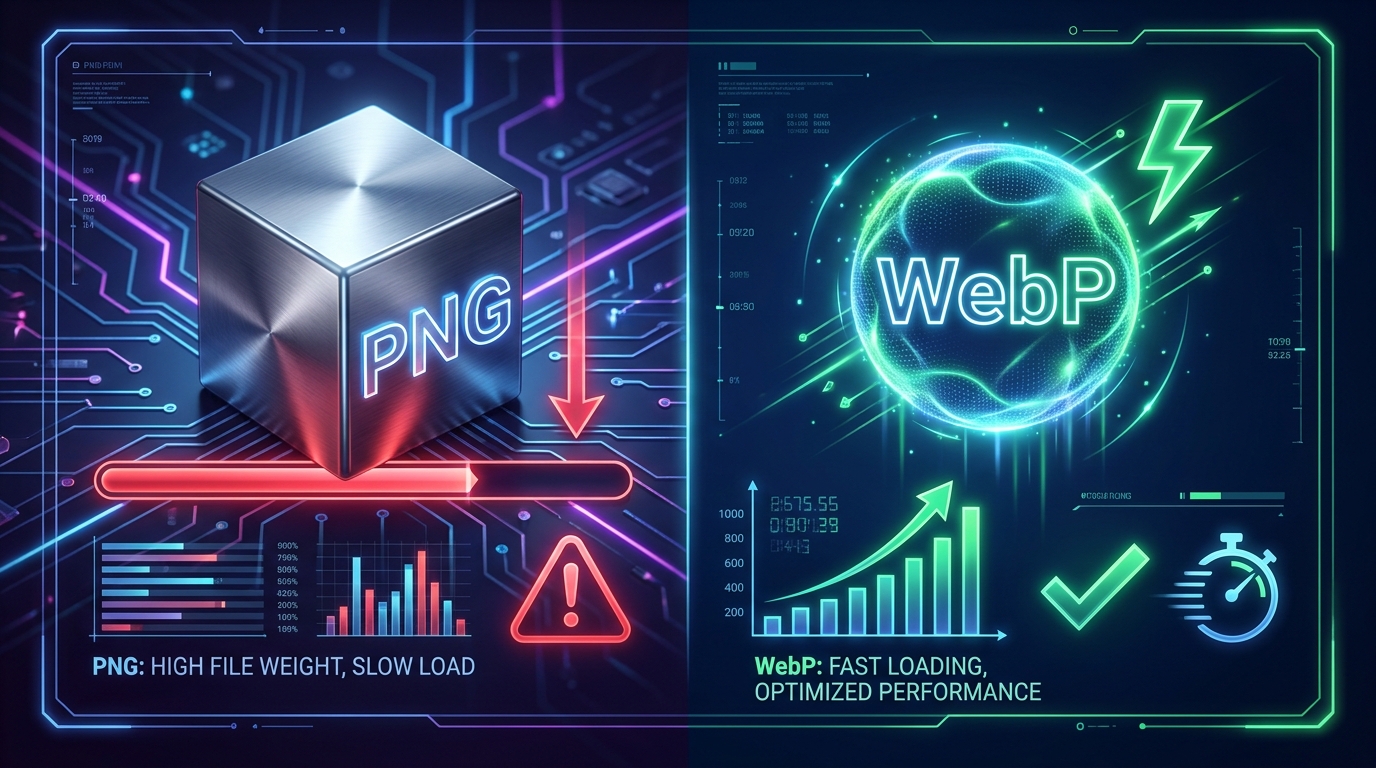
Large transparent PNG files damage your PageSpeed LCP score. Learn how serving modern WebPs with alpha channels preserves transparency while cutting file sizes by 30%.
Comments (0)
You must be logged in to leave a comment.
Sign In