
How to Use Santa Hat PNG: Creating Festive Holiday Graphics and Card Designs
 By Pics PNG
•
Jun 13, 2026
By Pics PNG
•
Jun 13, 2026
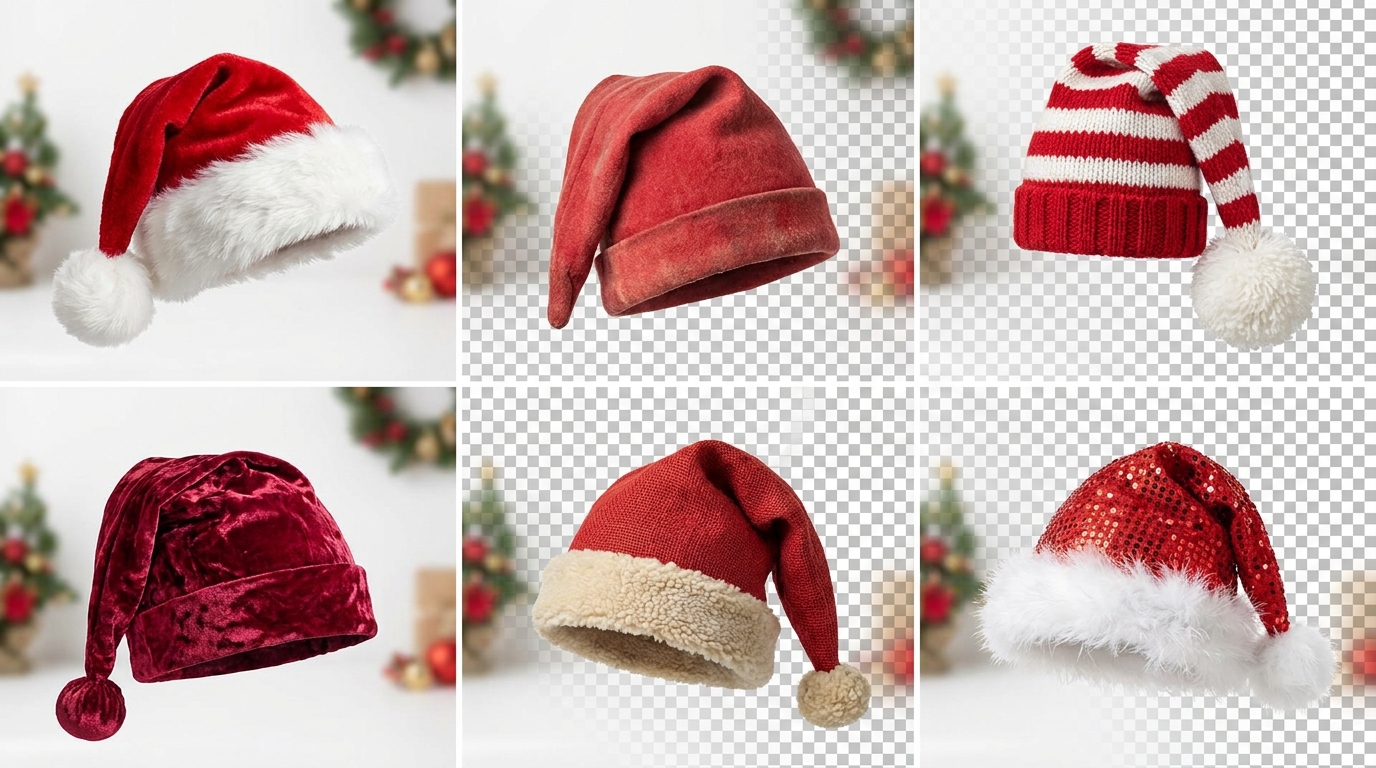
The holiday season is a peak period for digital marketing, social media campaigns, and personal greeting card designs. To stand out during this festive rush, graphic designers and content creators require quick, high-quality resources. One of the most versatile seasonal assets you can have in your design toolkit is a clean santa hat png with a transparent background.
Using pre-cut transparent graphics allows you to immediately add festive cheer to logos, team photos, products, and typography. In this comprehensive guide, we will explore the creative possibilities of using a transparent Santa Claus hat cutout, show you step-by-step how to blend it organically in different editor layouts, and discuss how to link your holiday assets to other essential seasonal vectors.
The Value of Pre-Cut Seasonal Graphics
When time is short, manually cropping and masking complex shapes like the fluffy white fur and pom-pom of a traditional Christmas hat is a designer's nightmare. A low-quality cutout leaves white halos and pixelated edges, which look unprofessional.
A high-definition christmas hat transparent png bypasses the manual cropping stage entirely. With a lossless alpha channel, you can drag and drop the hat directly onto any portrait, text layer, or product image.
| Asset Type | Primary Format | Best Use Case | Design Tip |
|---|---|---|---|
| Santa Hat | PNG (Alpha Channel) | Photo manipulation, logo overlays | Apply drop shadows to simulate head volume |
| Christmas Lights | PNG (Screen Blend) | Decorative frames, header overlays | Use 'Screen' blending mode to glow on dark backgrounds |
| Snow Overlay | PNG or WebP | Background mood setter | Reduce opacity to 30% to keep focus on foreground |
| Festive Typography | Vector / PNG | Card headers, social posts | Match fonts with clean sans-serif subtexts |
Step-by-Step Guide: Fitting a Santa Hat on a Portrait
Adding a santa hat transparent png to a person's head or a pet photo requires a few adjustments to look believable. Follow this quick workflow in your editing software (Photoshop, Canva, or GIMP):
Step 1: Position and Scale
Import your chosen Santa hat from our Holidays & Seasonal category. Place it on a layer above the subject. Use the transform tool to scale and rotate the hat. The brim of the hat should sit slightly tilted on the forehead, covering the top hairline.
Step 2: Warp and Perspective
Not all heads are shaped the same. In Photoshop, use the Warp Tool (under Edit > Transform > Warp) to bend the curves of the hat slightly to match the contour of the subject's head. If the subject is looking slightly to the side, rotate the hat to match the perspective angle.
Step 3: Create a Realistic Shadow
A common mistake is leaving the hat floating on top of the head without a contact shadow. Double-click the hat layer to open Layer Styles, select Drop Shadow, set the blending mode to Multiply, reduce the size, and set the opacity to around 40%. This creates a subtle shadow cast by the hat's brim onto the subject's forehead.
Step 4: Color and Lighting Match
Match the lighting of the hat to the background photo. If your portrait has a warm, yellow tone, add a photo filter adjustment layer clipped to the hat layer to inject subtle warmth. You can also adjust the brightness and contrast to match the ambient environment.
Advanced Creative Ideas for Holiday Graphics
Beyond placing hats on people, transparent holiday graphics open up many creative avenues:
- Festive Logo Makeovers: Temporarily place a miniature Santa hat on the capital letters or icon of your corporate logo for the month of December. This is a subtle, fun touch that shows your brand is active and celebrating.
- Dynamic E-Commerce Banners: Dress up product boxes by adding a hanging hat or wrapping a transparent ribbon graphic around them.
- Social Media Avatars: Add a quick holiday flair to your profile photo to increase engagement during the Christmas countdown.
If you are a mobile video creator editing for platforms like TikTok or YouTube, you can load the hat file as an overlay layer inside CapCut or Alight Motion. You can also pair it with a Snow Overlay PNG to create a winter wonderland scene.
Avoiding Common Holiday Design Pitfalls
A major error is using low-resolution assets that blur when resized. Always check the original dimensions of your files. Additionally, verify that the transparent background does not contain fake baked-in grey checkerboard patterns. Always download your graphics from reliable libraries that test transparency formats, like our Holidays category or the main Free PNG Hub sections.
Frequently Asked Questions
Where can I download a high-resolution Santa hat png?
You can download multiple high-resolution variants with genuine transparent backgrounds from our dedicated Holidays page.
Can I use these Christmas graphics for business promotions?
Yes, our standard license covers personal and commercial uses. Be sure to check individual file licenses for specific brand limitations.
How do I make the hat match a black and white photo?
Simply apply a Hue/Saturation adjustment layer to the hat graphic and slide the saturation slider all the way to -100 to desaturate the red color completely.
Are there different styles of hats available?
Yes, our directory includes classic red felt hats, cartoon versions, tilted styles to fit various photo angles.
Conclusion
Using a high-quality santa hat png is an efficient way to inject instant holiday joy into any graphic layout. By paying close attention to scale, rotation, shadows, and color temperature, you can create a seamless photo composite that looks highly professional. Explore our Holidays category and Effects section to find complementary design assets for your next winter campaign.
Suggested Articles
Boost your design skills with our related guides and resources.

Learn why large uncompressed PNG files slow down your Canva canvas and how to import modern transparent WebPs to speed up your digital layouts.
Ditch the green screens. Learn how to import lossless transparent WebP/PNG design overlays directly into CapCut and Premiere Pro timelines with clean anti-aliasing edges.
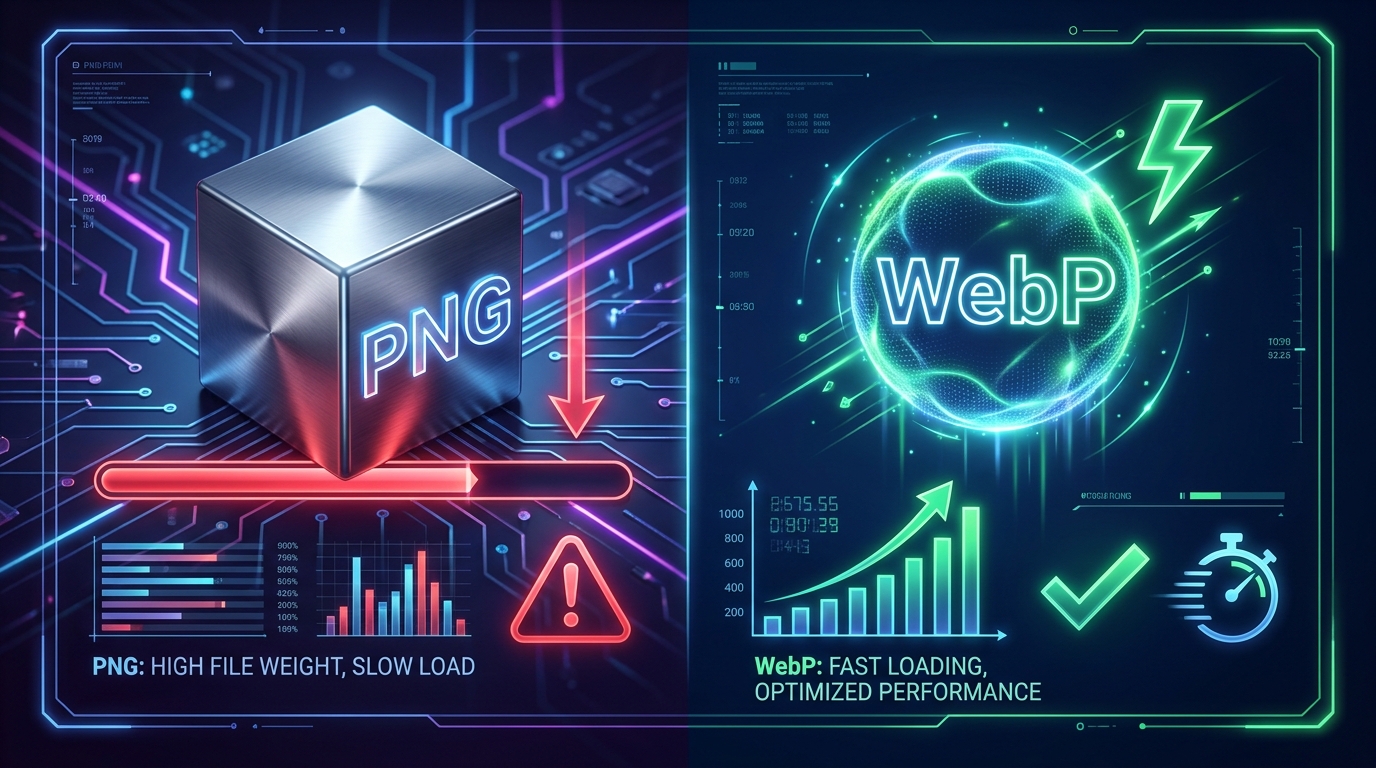
Large transparent PNG files damage your PageSpeed LCP score. Learn how serving modern WebPs with alpha channels preserves transparency while cutting file sizes by 30%.
Comments (0)
You must be logged in to leave a comment.
Sign In